
Search Knowledge Base by Keyword
Bijou Festival 2026 Submission Instructions
This flowchart is a quick overview on how to submit. The below instructions in the article go over these steps in more detail.
Final Deadline: Monday, May 4, 2026 at 8:00AM
If work is submitted after the deadline, there is no guarantee that it will be screened. Students are strongly encouraged to submit their materials as far in advance as possible. If you expect to not be able to meet the deadline for any reason you must Submit a 2 pop Ticket or email 2popsupport@calarts.edu BEFORE the final deadline.
To screen your work at the Bijou Festival 2026, you need to do 2 things:
1. Complete a submission form
- You should submit this form for every film of yours that you’d like to play in the Bijou Festival. This includes films playing in class screenings!
2. Submit your film by doing ONE of the following:
A. Thesis/Final-project screenings
- Upload your QuickTime Movie (.mov) file with the correct format by opening the Submit to Bijou Festival application (Instructions outlined below) by May 4th at 8AM
B. Class/Curated Screenings
- Deliver your QuickTime Movie (.mov) file with the correct format (outlined below) to the faculty member (or student) coordinating your Class/Curated Screening. For class screenings, you can deliver your final film in your last class. Please ask the faculty/student coordinating the screening how they would like you to deliver files.
C. Deliver a 16mm film print to the School of Film/Video office.
- If you are submitting a 16mm print, you should NOT submit a digitized version.
Notes
–If your film had a sound mix through CalArt’s FVSound, drop off your final video file with leader the same day as your mix in E104. A sound technician will do your Layback. Once your layback is done, pick up your layback files to submit for the Bijou Festival. If you need help submitting, the technicians at the FVSound helpdesk are happy to help!
How to export your film for Bijou Festival
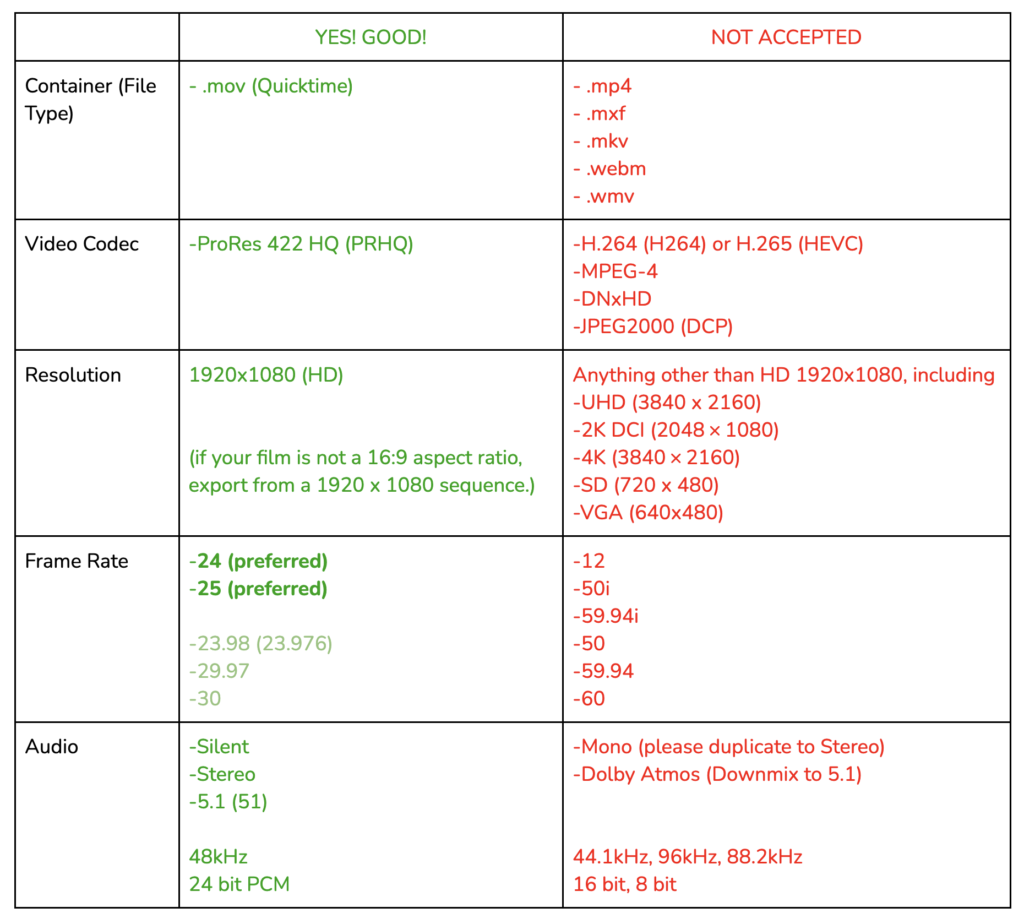
Below are specific tutorials on how to export a ProRes 422 HQ file correctly for the Bijou Theater
Additionally, please remember the following:
- Standard leader, 2 pop, and tail pop should be removed.
- Your film should begin AND end with 2 seconds of black.
- Be sure to export your film with the correct specifications shown below
How to name your film file for Bijou
Re-name your QuickTime file using the Calarts F/V Standard Naming Convention, plus this additional information:
LastNameFirstInitial_FilmTitle_YYYYMMDD
_Resolution_FrameRate_Codec_AudioFormat
Example 1 – 2001: A Space Odyssey, by Stanley Kubrick, released April 2nd 1968
↳
| KubrickS_2001ASpaceOdyssey_19680402_HD_24_PRHQ_51 |
Example 2
Everything Everywhere All At Once, by Daniel Kwan and Daniel Scheinert, released April 8th, 2022
↳
| KwanDScheinertD_EEAAO_20220408_HD_25_PRHQ_Stereo |
Notes:
-If your film had multiple directors, format the name LastFLastF! (see Ex. 2)
-If your film is in 5.1, leave out the period from your file name (see Ex. 1)
-If your name or your film’s title have punctuation, apostrophes, parentheses, or other non-alphanumeric symbols, DO NOT include them in the file name.(see Ex. 1)
-Remove spaces from your film’s title and capitalize the beginning of each word! (see Ex. 1 & 2)
-You may abbreviate or truncate excessively long titles (see Ex. 2)
How to double-check your film specs
Drag and drop your film file into the File Check app, available on the dock on any Film/Video computer.
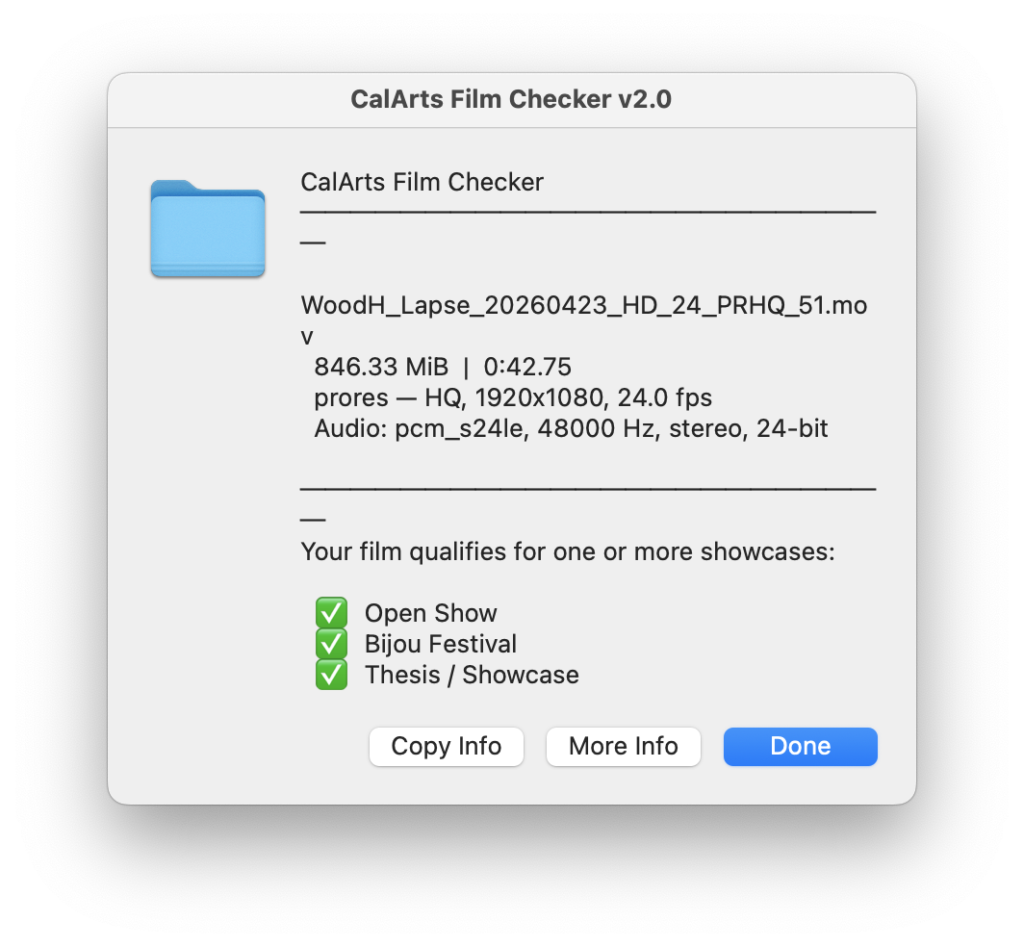
This app will automatically check whether your film has been exported correctly for the Bijou and will notify you as shown below
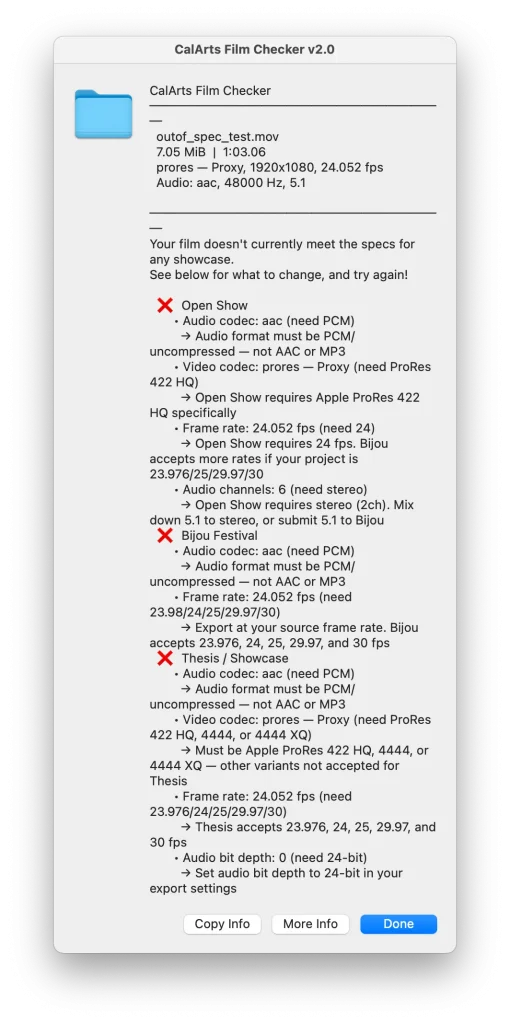
OR
Open your file in QuickTime and press Cmd⌘I
- Check that the info matches your title, and aligns with these specs
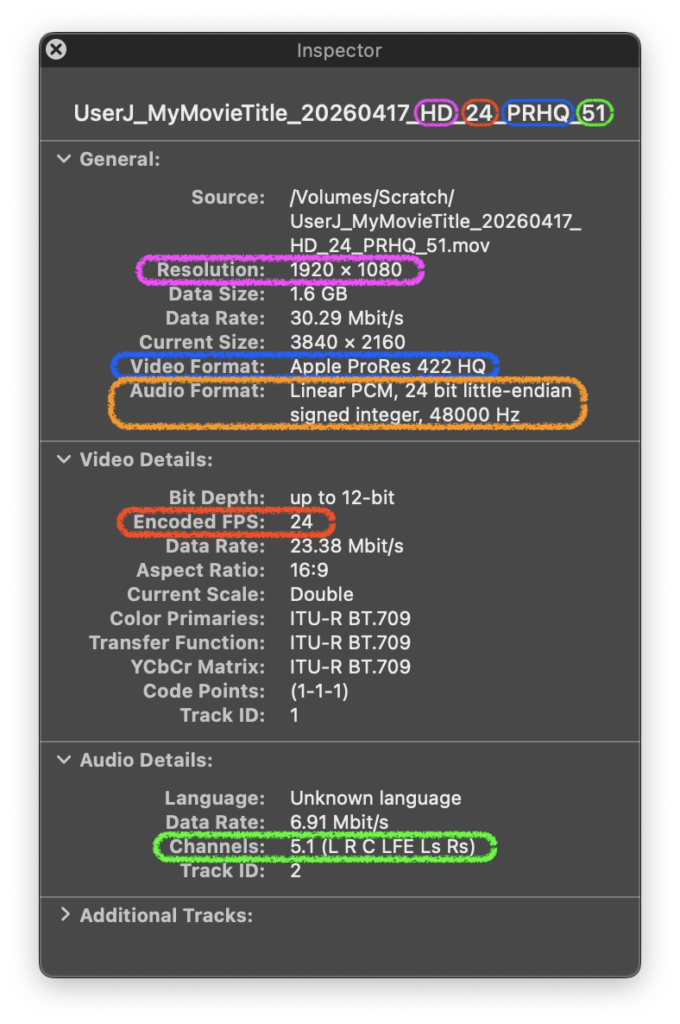
If under Video Details there is a second resolution in parentheses next to 1920×1080–for example, 1920×1080 (1706×1080)–or you see a separate detail that says “Pixel Aspect: 1706×1920” (or similar), it means you’ve exported with non-square pixels. Please re-export so there is no accidental stretching/squashing.
If under Audio Details you see Channels: 1, your film’s audio is mono. Please re-export so the audio doesn’t just come from the left speaker in the Bijou.
How to submit your own film file for Bijou Festival
You need to submit your own film file for Open and Graduate Screenings by May 4th, 2026 at 8:00AM.
You can submit your film file on any School of Film/Video computer by double-clicking on the application Submit to Bijou Fest found in the dock
OR you can drag and drop your film file directly onto the Submit to Bijou Fest app shown below
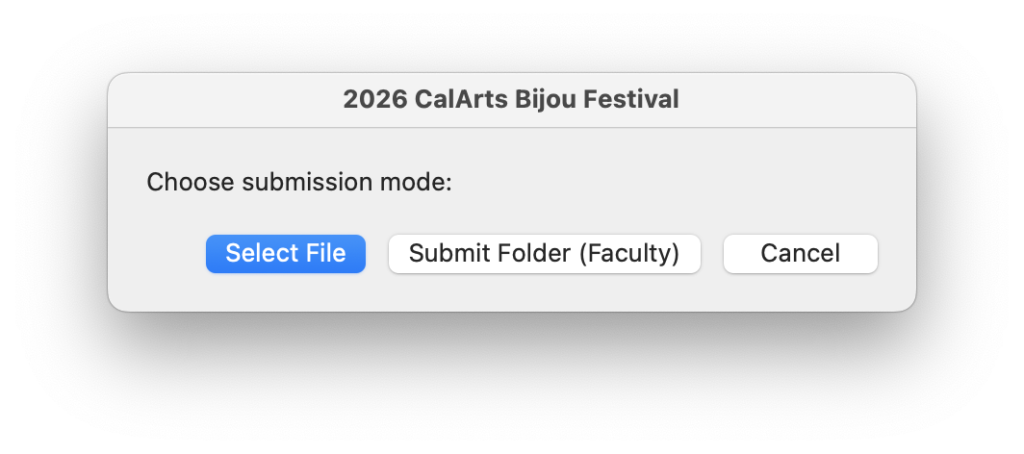
This application will ask you to do the following:
- Select your film file
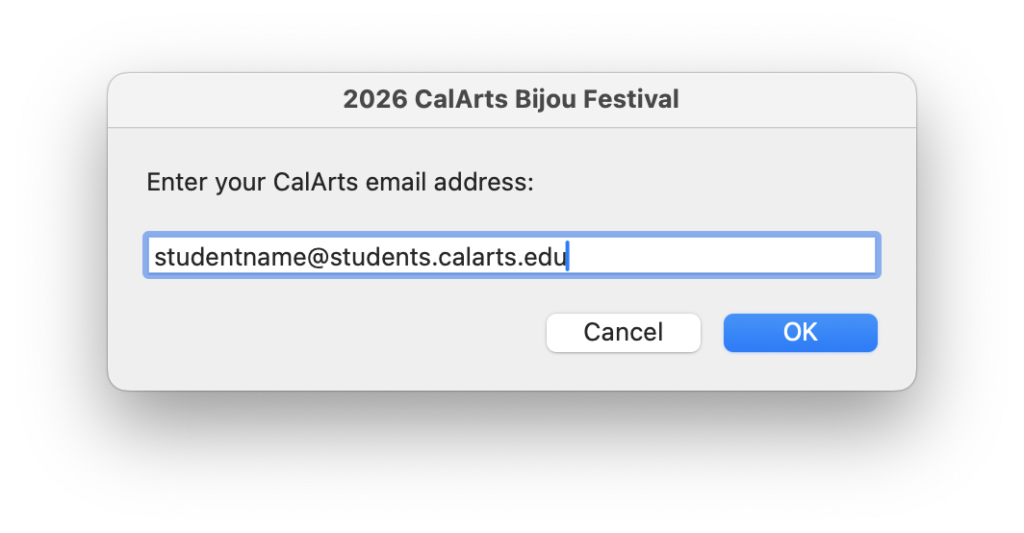
2. Enter your CalArts email. Please enter the same email you used to fill out your Submission Form.
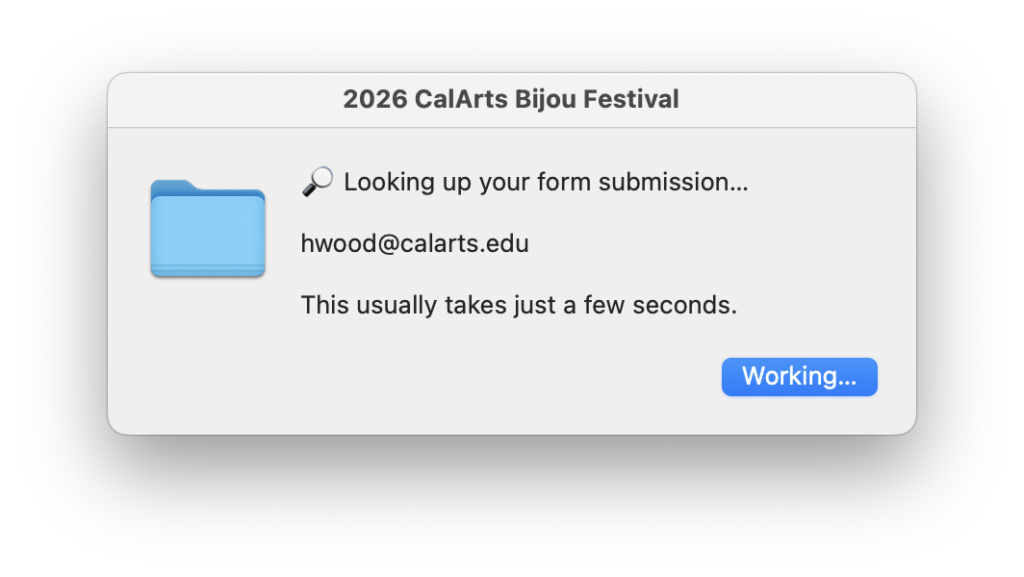
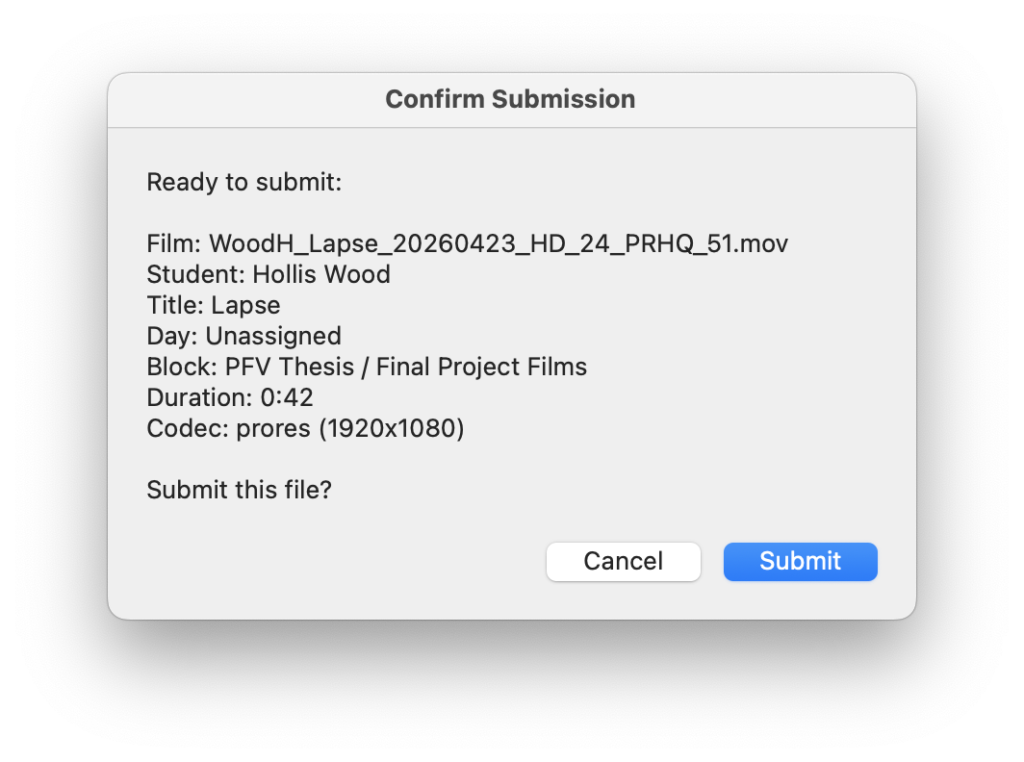
3. If you’ve submitted a form and your film specs are correct, click Submit!
If your film specs are incorrect, you’ll see these pop ups.
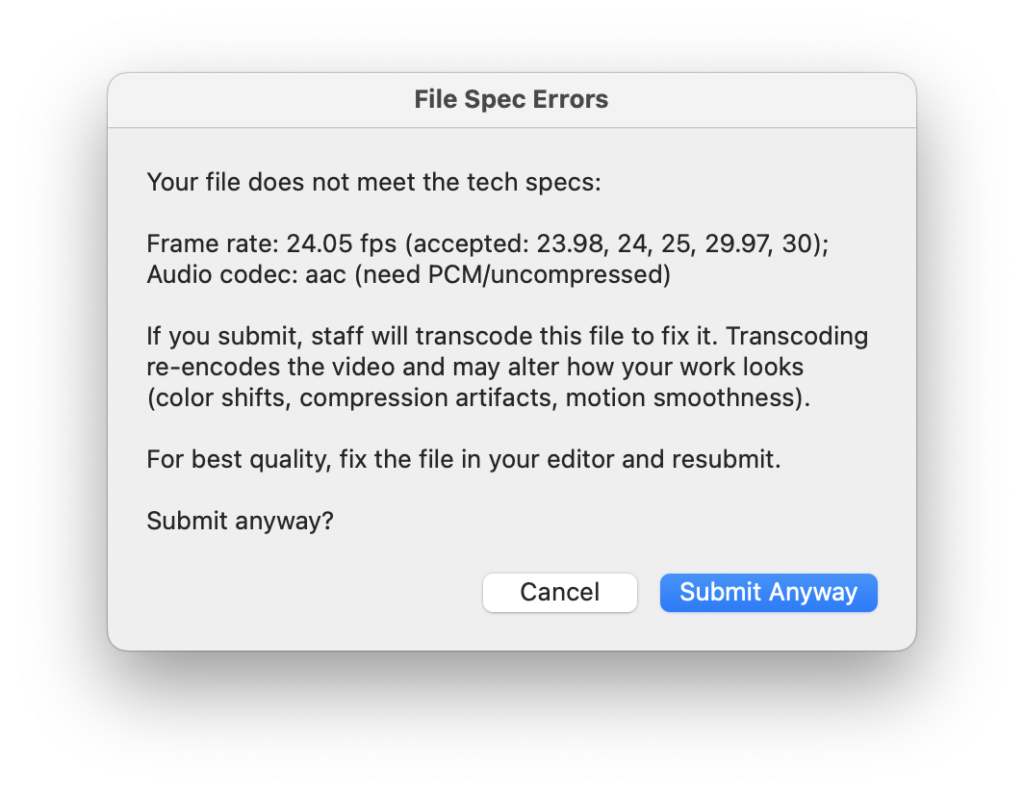
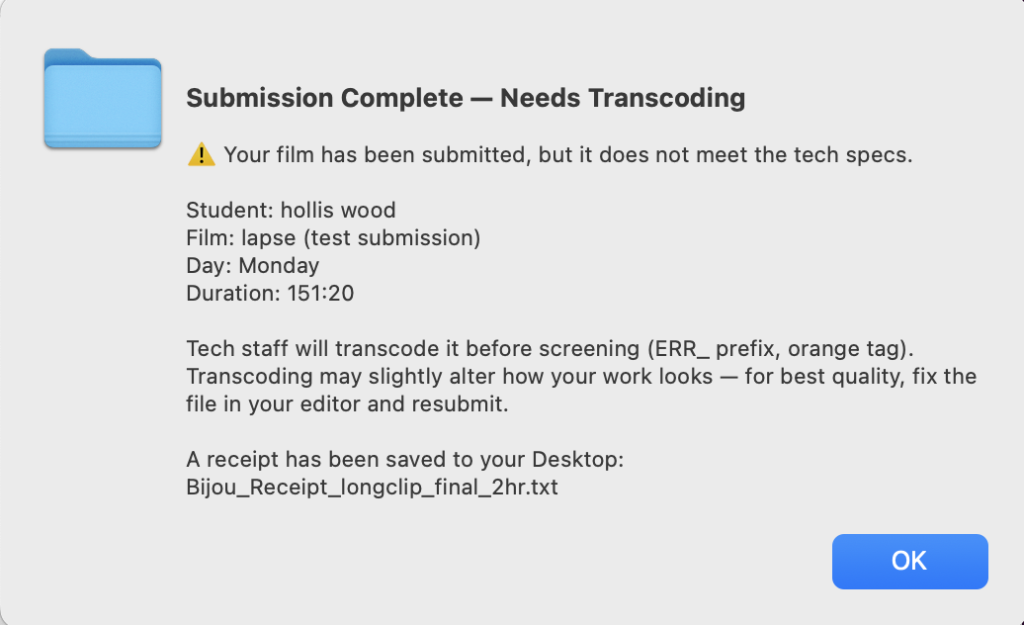
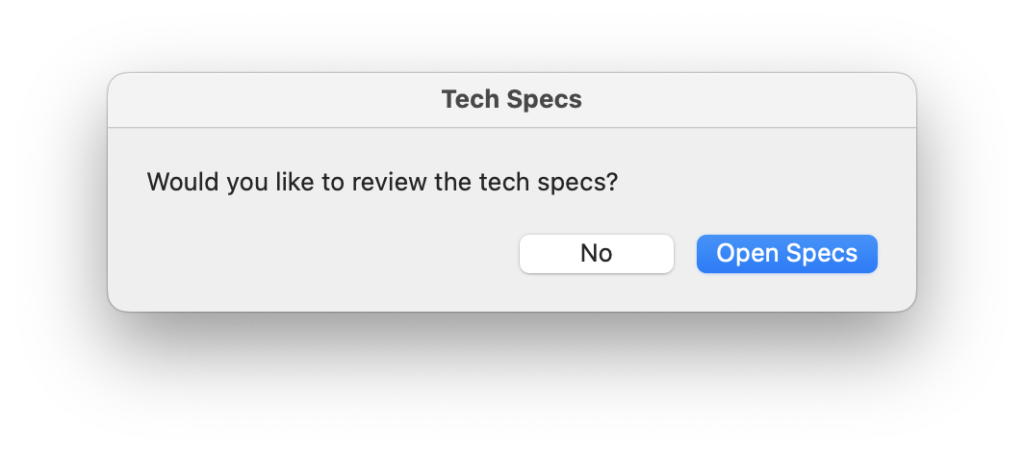
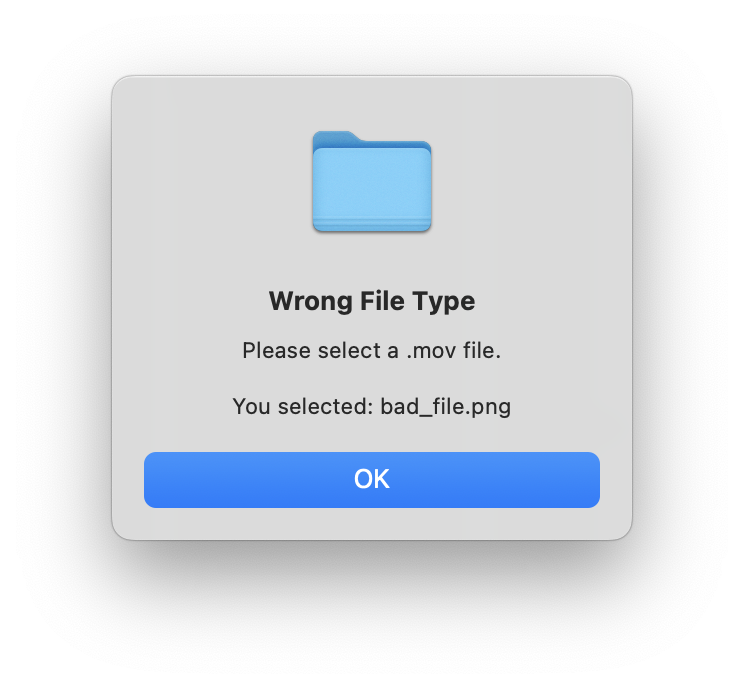
To ensure your film plays correctly, please re-export your film and submit your corrected version. If you submit a film with the wrong tech specs, FV staff will transcode your film which could alter how your film looks.
Delivering Your 16mm Film Print
- Film reels must be heads out with at least 10’ head and tail leader.
- Any splices should be double-spliced and have clean perforations.
- Fill out the Bijou Festival 2026 Submission Form
- Bring your 16mm film print to the School of Film/Video office.
Getting Help
If you need help with any part of the submission process, stop by the FV Sound or DEP Help Desk:
- FVSound Help Desk (E104): Mon 12:30-4pm, Tue/Wed/Fri, 9AM-4PM, Thur 9AM-12:30PM
- DEP Help Desk (E46): Mon, Wed – Fri, 4PM-8PM
If you have any technical questions, please Submit A 2 Pop Ticket or email 2popsupport@calarts.edu