-
Animation
- Animated Films Technical Specifications
- Setting Up a New Premiere Project
- Setting Up a New After Effects Composition
- Exporting a ProRes 422 HQ .mov from Premiere Pro
- Exporting from Premiere Pro for the Internet
- HD Aspect Ratios
- About Subtitles
- The Film/Video Render Farm
- Using an iPad with Apple Sidecar
-
Computer Labs
- Your FV Computer Account
- Connecting to FVCentral
- Creating an Email Filter in Gmail
- Recommended Minimum Computer Specifications for New Students 2025-2026
- Required Personal Equipment for Students
- Software Available in School of Film/Video Computer Labs
- Using the Computer Lab A/V Racks
- Software Launching Issues on FV Lab Computers
-
Equipment
-
FV Screenings
-
FVSound
- About Your Layback
- Burning a Blu-ray in Toast Titanium or Compressor
- F104 Quickstart Guide: Operating and Recording
- Layback in DaVinci Resolve
- Loading MixPre-3 and MixPre-6 Presets
- Pro Tools FV Templates to Download
- Recording Foley at Home
- Sound Devices MixPre Quickstart
- Getting Started with Soundly
- Using Standard Leader
- Using the Sennheiser MKH 418S Stereo Mic with the MixPres
- Working with the Pro Tools FV Edit Template
- Syncing Audio and Picture in Premiere Pro
- Auto Syncing Audio and Picture in DaVinci Resolve
- Using the AMBEO Ambisonics Mic with the MixPre 6 and Pro Tools Templates
- Using Local F/V Sound Effects
- Show all articles ( 1 ) Collapse Articles
-
Post Production
-
Production and Installation
HD Aspect Ratios
Resolution Requirements
Because all films are played back-to-back continuously during our screenings, we cannot stop between films to accommodate different aspect ratios. Your final films must match the following resolution settings:
- Size: 1920 x 1080
- Frame Rate: 24
- Pixel Aspect Ratio: Square (1.0)
- Field Render/Interlacing: Off
Project Settings
You should be working in your projects using the settings shown above (see the guides on settings for Premiere and After Effects). If you are using any other settings, you will need to nest your film into a 1920 x 1080 project in order to export it with the proper aspect ratio. The most straight-forward way to do this is export your final film with its native settings, re-import it into a new 1920 x 1080 Premiere Pro project, scale it proportionately (right-click on the clip, and choose Set to Frame Size), then re-export it with the required settings.
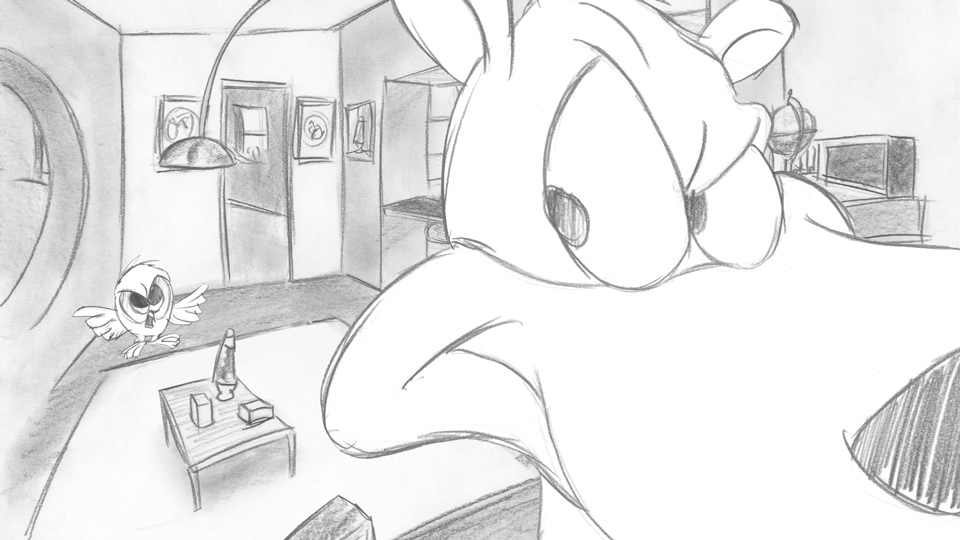
If your project is already using a 16:9 aspect ratio at 1920 x 1080, you can export it as-is:
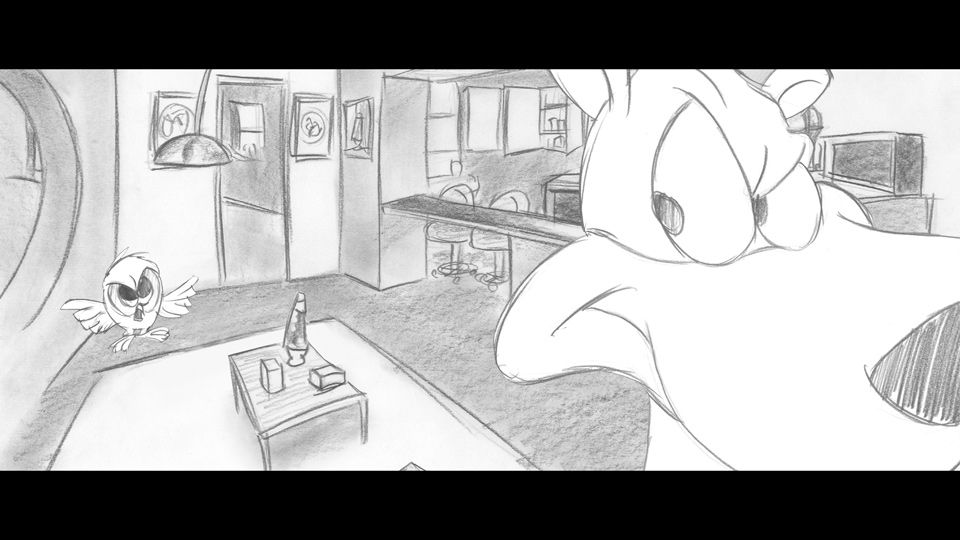
If your project is using an aspect ratio wider than 16:9, you will have to letterbox it to fit into a 1920 x 1080 project (black bars pad out the top and bottom):
If your project is using an aspect ratio narrower than 16:9, you will have to pillarbox it to fit into a 1920 x 1080 project (black bars pad out the left and right sides):